Getting Started with Bryntum Grid in Ionic
Try Ionic demos
Bryntum Grid is delivered with a variety of Ionic demo applications showing its functionality. All demo applications have been verified to be compatible with Node.js 20.
Version requirements
Minimum supported:
- Angular:
9.0.0or higher - TypeScript:
3.6.0or higher (for TypeScript application) - Vite
4.0.0or higher (for application build with Vite)
Recommended:
- Angular:
12.0.0or higher - TypeScript:
4.0.0or higher (for TypeScript application) - Vite
5.0.0or higher (for application build with Vite)
Create Ionic application
To get started, the broad steps are as follows:
- Access to npm registry
- Create Application
- Install component
- Add component to Application
- Apply styles
- Run the application
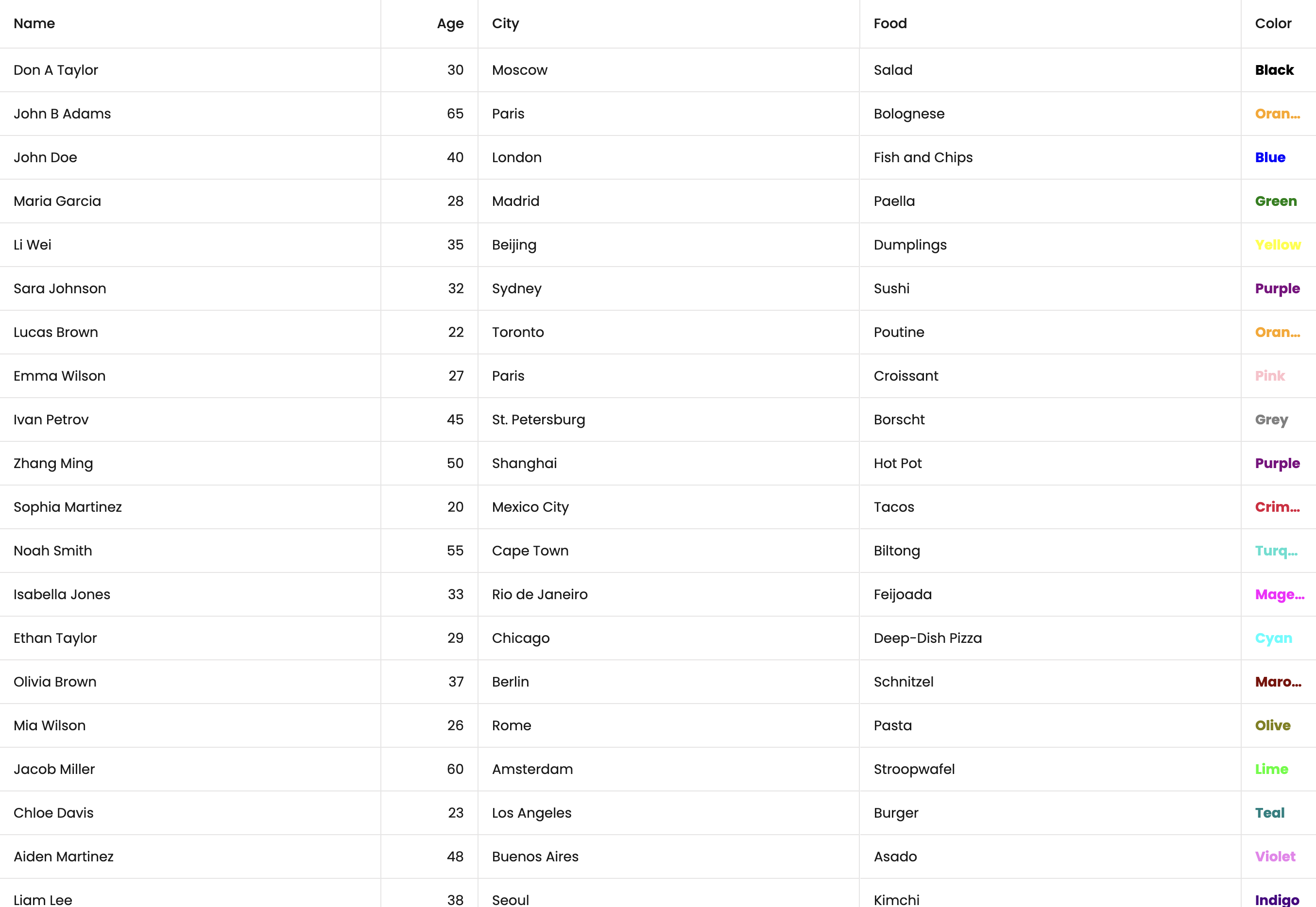
The application we are about to build together is pretty simple, and will look like the illustration below:
Access to npm registry
Bryntum components are commercial products, hosted in a private Bryntum repository. Please refer to our Npm Repository Guide for a complete access information.
Create Application
Similarly to all the examples shipped with the distribution, we will be using Ionic CLI to build Ionic applications.
Type the following command to install Ionic CLI:
npm install -g @ionic/cli
We will then create a basic application with Ionic CLI:
ionic start IonicApp blank --type=angular
Here we are using blank, the most simple starter template for the app.
Ionic can use Angular, React, or Vue. By choosing --type=angular, we tell Ionic CLI to generate an application using
Angular.
Feel free to select other defaults if needed following instruction provided in the Ionic Framework Documentation
Please feel free to change IonicApp to your preferred application name
You can then move to your application folder
cd IonicApp
Install component
From your terminal, update project dependencies using the following commands:
npm install @bryntum/grid@npm:@bryntum/[email protected] @bryntum/[email protected]
Ensure that you have configured your npm properly to get access to the Bryntum packages. If not, refer to this guide.
Add component to Application
Edit the src/app/home/home.module.ts file and add the following:
import { BryntumGridModule } from '@bryntum/grid-angular';

@NgModule({
    imports : [
        BryntumGridModule
    ]
})
Then, edit the src/app/home/home.page.ts file and replace the content with the following:
import { Component, ViewChild} from '@angular/core';
import { BryntumGridComponent } from '@bryntum/grid-angular';
import { gridProps } from './home.config';

@Component({
  selector: 'app-home',
  templateUrl: 'home.page.html',
  styleUrls: ['home.page.scss'],
  standalone: false,
})
export class HomePage {

    gridProps = gridProps;

    @ViewChild('grid') gridComponent!: BryntumGridComponent;

}
Create a src/app/home/home.config.ts file with the following content:
import { BryntumGridProps } from '@bryntum/grid-angular';

export const gridProps: BryntumGridProps = {
    columns : [
        {
            text   : 'Name',
            field  : 'name',
            flex   : 1,
            editor : {
                type     : 'textfield',
                required : true
            }
        }, {
            text  : 'Age',
            field : 'age',
            width : 100,
            type  : 'number'
        }, {
            text  : 'City',
            field : 'city',
            flex  : 1
        }, {
            text  : 'Food',
            field : 'food',
            flex  : 1
        }, {
            text     : 'Color',
            field    : 'color',
            width    : 80,
            type     : 'column',
            renderer : ({ cellElement, value }) => {
                cellElement.style.color = value;
                cellElement.style.fontWeight = '700';
                return value;
            }
        }
    ],

    data : [
        { id : 1, name : 'Don A Taylor', age : 30, city : 'Moscow', food : 'Salad', color : 'Black' },
        { id : 2, name : 'John B Adams', age : 65, city : 'Paris', food : 'Bolognese', color : 'Orange' },
        { id : 3, name : 'John Doe', age : 40, city : 'London', food : 'Fish and Chips', color : 'Blue' },
        { id : 4, name : 'Maria Garcia', age : 28, city : 'Madrid', food : 'Paella', color : 'Green' },
        { id : 5, name : 'Li Wei', age : 35, city : 'Beijing', food : 'Dumplings', color : 'Yellow' },
        { id : 6, name : 'Sara Johnson', age : 32, city : 'Sydney', food : 'Sushi', color : 'Purple' },
        { id : 7, name : 'Lucas Brown', age : 22, city : 'Toronto', food : 'Poutine', color : 'Orange' },
        { id : 8, name : 'Emma Wilson', age : 27, city : 'Paris', food : 'Croissant', color : 'Pink' },
        { id : 9, name : 'Ivan Petrov', age : 45, city : 'St. Petersburg', food : 'Borscht', color : 'Grey' },
        { id : 10, name : 'Zhang Ming', age : 50, city : 'Shanghai', food : 'Hot Pot', color : 'Purple' },
        { id : 11, name : 'Sophia Martinez', age : 20, city : 'Mexico City', food : 'Tacos', color : 'Crimson' },
        { id : 12, name : 'Noah Smith', age : 55, city : 'Cape Town', food : 'Biltong', color : 'Turquoise' },
        { id : 13, name : 'Isabella Jones', age : 33, city : 'Rio de Janeiro', food : 'Feijoada', color : 'Magenta' },
        { id : 14, name : 'Ethan Taylor', age : 29, city : 'Chicago', food : 'Deep-Dish Pizza', color : 'Cyan' },
        { id : 15, name : 'Olivia Brown', age : 37, city : 'Berlin', food : 'Schnitzel', color : 'Maroon' },
        { id : 16, name : 'Mia Wilson', age : 26, city : 'Rome', food : 'Pasta', color : 'Olive' },
        { id : 17, name : 'Jacob Miller', age : 60, city : 'Amsterdam', food : 'Stroopwafel', color : 'Lime' },
        { id : 18, name : 'Chloe Davis', age : 23, city : 'Los Angeles', food : 'Burger', color : 'Teal' },
        { id : 19, name : 'Aiden Martinez', age : 48, city : 'Buenos Aires', food : 'Asado', color : 'Violet' },
        { id : 20, name : 'Liam Lee', age : 38, city : 'Seoul', food : 'Kimchi', color : 'Indigo' },
        { id : 21, name : 'Sophie Kim', age : 21, city : 'Tokyo', food : 'Ramen', color : 'Pink' },
        { id : 22, name : 'Alexander Nguyen', age : 41, city : 'Hanoi', food : 'Pho', color : 'Coral' },
        { id : 23, name : 'Ella Patel', age : 19, city : 'Mumbai', food : 'Curry', color : 'Amber' },
        { id : 24, name : 'James O Connor', age : 34, city : 'Dublin', food : 'Irish Stew', color : 'Green' },
        { id : 25, name : 'Isabelle Chen', age : 31, city : 'Hong Kong', food : 'Dim Sum', color : 'Brown' }
    ]
};
And finally, edit the src/app/home/home.page.html file and replace the content with the following:
<ion-content [fullscreen] = "true">
  <div id = "container">
    <bryntum-grid
      #grid
      [data] = "gridProps.data!"
      [columns] = "gridProps.columns!"
    ></bryntum-grid>
  </div>
</ion-content>
Apply styles
Stylesheets
The following CSS files are provided with the Bryntum npm packages or in the /build folder of the distribution:
| File | Contents |
|---|---|
grid.css | Structural CSS |
svalbard-light.css | Svalbard Light theme |
svalbard-dark.css | Svalbard Dark theme |
visby-light.css | Visby Light theme |
visby-dark.css | Visby Dark theme |
stockholm-light.css | Stockholm Light theme |
stockholm-dark.css | Stockholm Dark theme |
material3-light.css | Material3 Light theme |
material3-dark.css | Material3 Dark theme |
fluent2-light.css | Fluent2 Light theme |
fluent2-dark.css | Fluent2 Dark theme |
fontawesome/css/fontawesome.css | Font Awesome Free base CSS |
fontawesome/css/solid.css | Font Awesome Free solid icons |
You'll need to import the structural CSS and the preferred theme into your project for the Bryntum Grid to render correctly, and if you are not replacing the icons used by the component, you will also need to include Font Awesome.
Edit the src/global.scss and add the following:
// FontAwesome is used for icons
@import "~@bryntum/grid/fontawesome/css/fontawesome.css";
@import "~@bryntum/grid/fontawesome/css/solid.css";
// Structural CSS
@import "~@bryntum/grid/grid.css";
// Bryntum theme of your choice
@import "~@bryntum/grid/svalbard-light.css";
Sizing the component
By Default, the Component is configured to take 100% of the parent DOM element with a min-height of 10em.
For your application to show the Component with the appropriate size, you can for example make parent components take the full height of the screen.
In your src/app/home/home.page.scss file, add the following:
#container {
    height : 100vh;
}
There are many other solutions depending on the situation. Feel free to adapt the code above regarding your application layout. For more information on the topic, see this guide Sizing the component.
Run the application
From your terminal:
ionic serve
Your application is now available under http://localhost:8100, and your browser should automatically open it for you.
Troubleshooting
Please refer to this Troubleshooting guide.
What to do next?
Further on integration with Ionic
Do you want to know more about how Bryntum Grid integrates with Ionic and starts to customize your application? We provide you with a complete Ionic guide here.
Learn about Data
Bryntum components often use multiple collections and entities.
The Data guide explains how they all fit together.